How to Enable Dark Mode on Your iPhone: Complete Guide for 2026
Dark mode has transformed how users interact with their devices, reducing eye strain during evening use while conserving battery life on OLED displays. iPhone’s implementation of dark mode has evolved significantly, offering comprehensive customization options. This guide walks through enabling and configuring dark mode across iOS devices. Understanding dark mode’s various implementation options helps you tailor your iPhone experience to your specific preferences and usage patterns.
Enable System-Wide Dark Mode
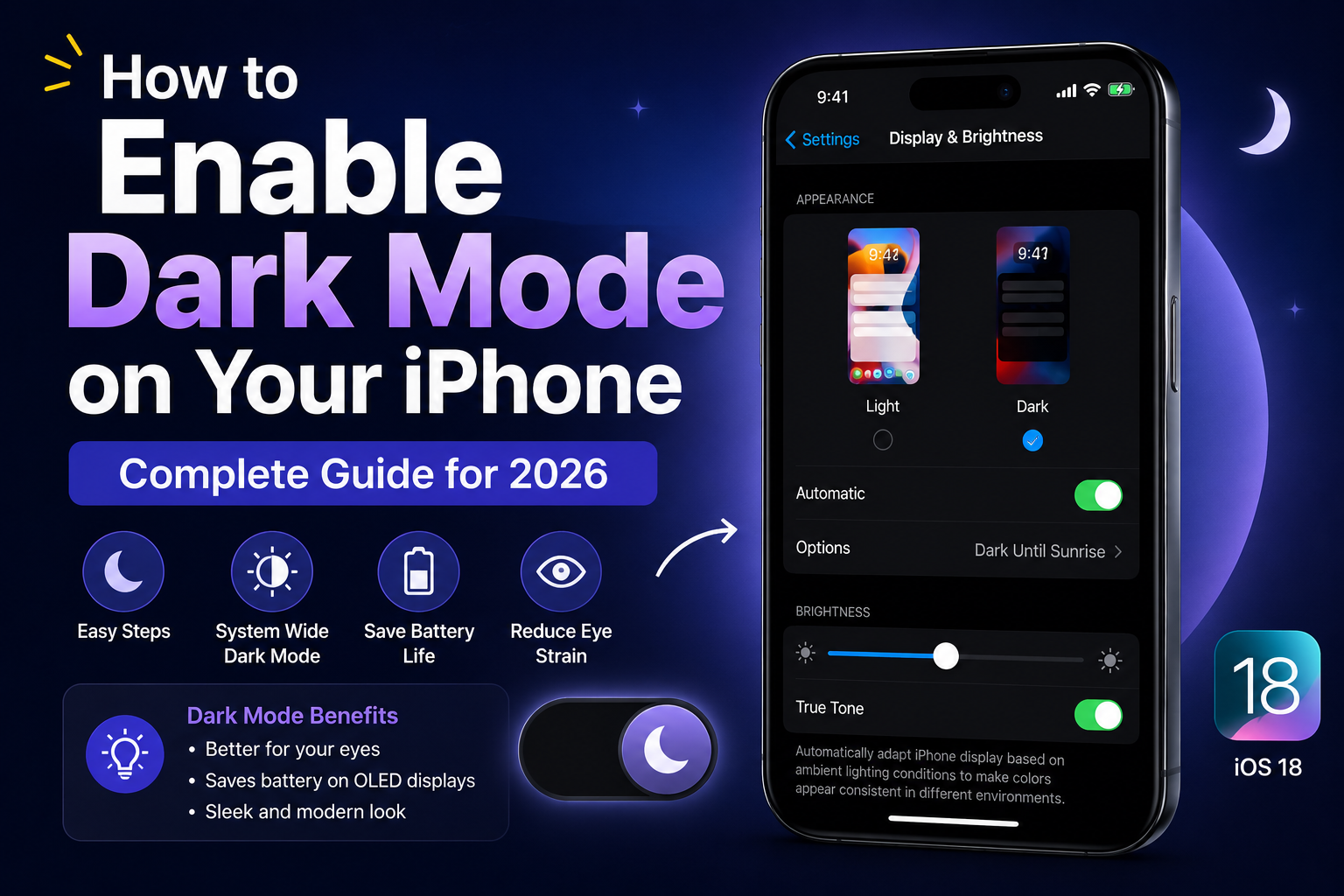
Navigate to Settings > Display & Brightness to access dark mode settings. You’ll see three options: Light, Dark, and Automatic. Selecting Dark immediately switches your entire system interface to dark backgrounds. Most users benefit from selecting Automatic, which switches between light and dark mode based on sunset and sunrise times. This automatic adjustment ensures optimal brightness for the current time without manual adjustment. The system-wide setting affects all native Apple apps, the home screen, and notification centers. Third-party apps respond to this setting if developers implement dark mode support.
Configure Automatic Scheduling
With Automatic selected, navigate to Settings > Display & Brightness to customize the schedule. By default, the schedule follows your local sunset and sunrise times, requiring no additional configuration. Tap Options to customize the schedule manually. Select a specific time to switch to dark mode rather than using sunset/sunrise. This proves useful if your preferred dark mode timing differs from natural lighting changes. Check the “Use Sunset to Sunrise” toggle to revert to automatic timing based on your location.
Keyboard Dark Mode
The keyboard appearance automatically matches your system dark mode setting in most cases. If the keyboard fails to respond to dark mode, try toggling dark mode off and on. Some apps implement custom keyboards that don’t respond to system dark mode. These apps may provide separate keyboard appearance settings within their own preferences.
App-Specific Dark Mode Settings
While system settings determine most app appearances, individual apps can override the system preference. Some apps provide independent dark mode toggles within their settings. Open apps that aren’t properly implementing dark mode and navigate to their preferences or settings. Look for Appearance, Theme, or Display options providing dark mode control. App developers continue improving dark mode implementation. Updating apps via the App Store often includes improved dark mode support.
Customize App Colors
Select a color from Settings > Display & Brightness > Color Filters to customize your display’s color tone. The Light, Neutral, and Dark options apply subtle shifts to your overall display color. Some users prefer enabling Color Filters independently to further customize their viewing experience. Experiment with different filters to find your preferred configuration.
Battery Impact and Eye Strain
Dark mode reduces power consumption on OLED displays by deactivating pixels displaying black content. If you use your iPhone in dark environments extensively, enabling dark mode conserves battery life while improving viewing comfort. The eye strain reduction comes from reducing bright light emission during evening use. The reduced brightness in dark mode prevents disruption of melatonin production, promoting better sleep when using your phone before bed. These benefits vary by individual usage patterns. Measure your personal battery improvement to determine whether dark mode aligns with your priorities.
Troubleshooting Dark Mode Issues
If dark mode isn’t applying to all apps, verify system settings in Settings > Display & Brightness. Ensure Dark or Automatic is selected rather than Light. Some older apps don’t implement dark mode support. Updating apps via the App Store often resolves compatibility issues. If an app still lacks dark mode after updating, contact the developer requesting dark mode implementation. Force quit problematic apps and reopen them to encourage dark mode re-evaluation. Restart your iPhone if multiple apps fail to respond to dark mode settings.
Conclusion
Dark mode represents more than aesthetic preference—it affects eye comfort, sleep quality, and battery life. Enabling automatic dark mode scheduling provides optimal timing without requiring daily manual adjustment. Your iPhone automatically optimizes its appearance based on your location and local sunset times. Explore dark mode settings to identify your preferred configuration. Most users benefit from automatic scheduling with default settings, while others may prefer manual control or customization. The flexibility available ensures you can optimize your iPhone’s appearance for your specific preferences.
You Can Also Check More Content