How to Fix Android Battery Draining Fast: Complete Solutions for 2026
Rapid battery drain frustrates Android users worldwide. Modern smartphones pack increasingly powerful processors and vibrant displays, creating legitimate power demands. However, excessive battery drain often stems from misconfiguration or problematic apps rather than hardware limitations. Understanding what consumes battery power and implementing targeted solutions can extend your device’s runtime significantly. Most users can improve battery life substantially through software optimization without replacing batteries or hardware.
Identify Power-Hungry Apps
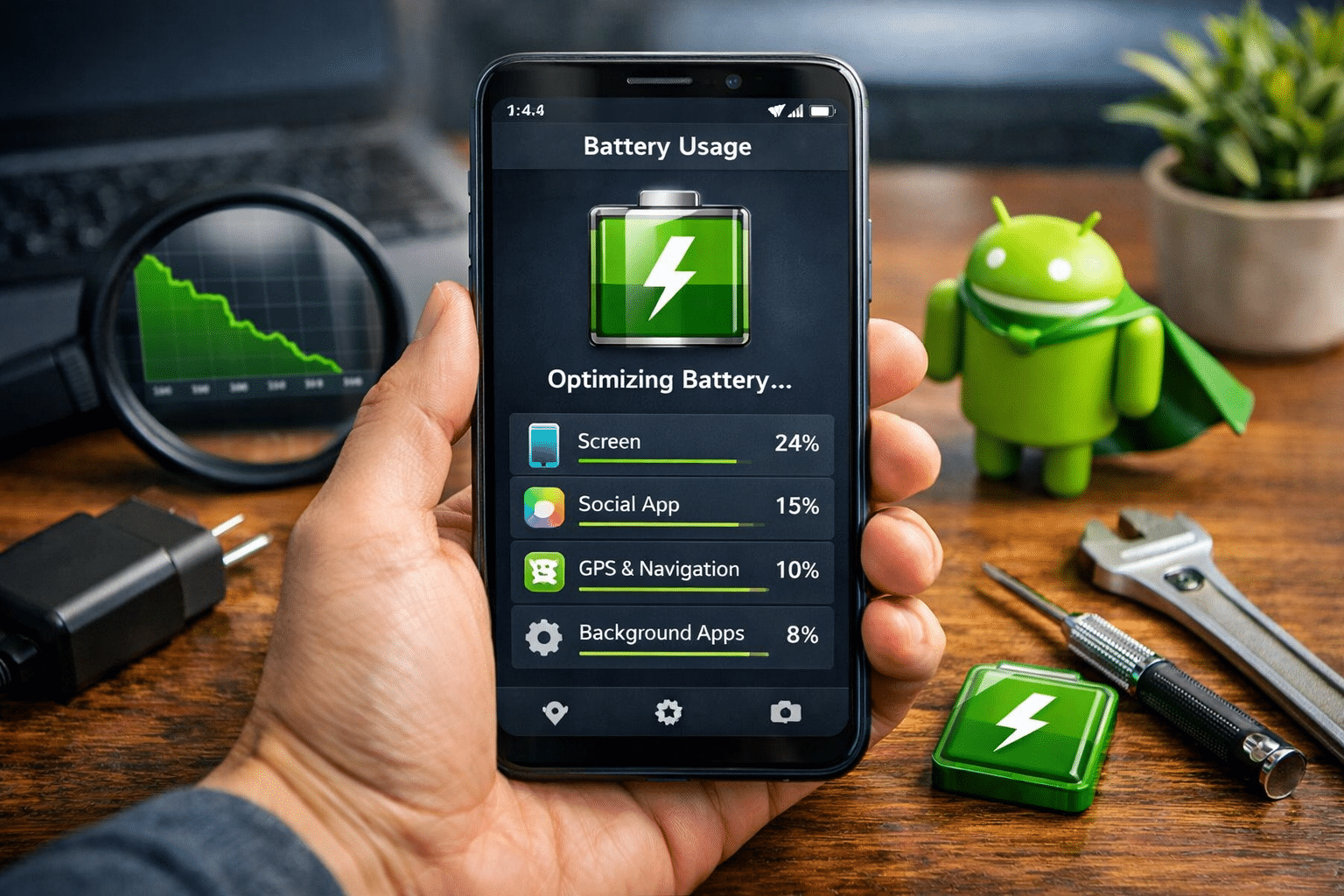
The first step in solving battery drain involves identifying which apps consume excessive power. Android provides built-in battery analysis showing which apps consume the most energy. Open Settings > Battery > Battery Usage. You’ll see a detailed breakdown of apps consuming battery power. Tap specific apps to see whether they consumed power through active use or background operation. Apps consuming disproportionate power during background operation often have bugs or aggressive refresh settings. Uninstalling or replacing problematic apps provides immediate battery improvement. Common culprits include older social media apps, poorly optimized games, and location-heavy applications.
Disable High-Resolution Video Recording
Video recording at maximum resolution consumes significant power. Reducing recording resolution conserves battery without major quality loss. Open Camera Settings and locate video resolution options. Most users won’t notice quality difference between 4K and 1440p, yet the power savings are substantial. Reducing refresh rate from 60fps to 30fps further extends battery life during video recording.
Dive deeper and explore more of our latest articles – Top Cybersecurity Threats to Watch Out For
Reduce Display Brightness and Refresh Rate
Display brightness represents the single largest power consumer on most Android phones. Reducing brightness extends battery life dramatically without sacrificing usability. Enable Adaptive Brightness in Settings > Display. This automatically adjusts brightness based on ambient lighting, consuming less power in darker environments while maintaining readability. Reduce your maximum brightness setting. Most users adapt quickly to lower brightness and see significant battery improvement. Additionally, reduce refresh rate if your phone supports high refresh displays. Setting 90Hz or 120Hz to Adaptive mode uses higher refresh rates only when beneficial.
Disable Location Services When Unnecessary
Location services consume battery continuously, even in the background. Disabling location when not needed provides immediate power savings. Navigate to Settings > Location and toggle it off entirely when you’re stationary. Alternatively, manage individual app permissions in Settings > Location and disable location access for apps that don’t genuinely need it. Using Battery Saver mode also limits location accuracy and frequency, reducing power consumption while maintaining basic location functionality.
Enable Battery Saver Mode
Battery Saver mode (called Power Saving or Ultra Power Saving on some devices) reduces processor speed, limits background activity, and reduces display refresh. Enabling Battery Saver at 20% battery remaining extends runtime significantly. Some users keep Battery Saver mode enabled constantly for extended battery life. While this reduces performance slightly, the battery longevity improvement justifies the tradeoff for many users.
Disable Background Sync for Email
Email sync represents a common battery drain source, particularly for users with multiple accounts. Disabling background sync and setting manual refresh intervals conserves power. Open Email Settings and select refresh frequency. Changing from continuous sync to hourly or manually-triggered refresh reduces battery consumption substantially. Users can still receive important emails through notifications while reducing constant background activity.
Update Apps and Operating System
Outdated apps often contain power management bugs. Updating to latest versions typically includes battery improvements alongside feature additions. Open Play Store > My Apps > Updates and install all available updates. Similarly, check for system updates in Settings > About Phone > System Update. Install any available updates, as they frequently include battery optimization improvements.
Don’t miss out—there’s more valuable content waiting for you- How to Speed Up Android Phone in 5 Minutes: Proven Methods That Work
Check for Overheating
Excessive heat causes the system to reduce processor performance, consuming more power inefficiently. Overheating often results from case obstruction, excessive app usage, or hardware issues. Remove your case temporarily and allow the phone to cool. Avoid using power-intensive apps like games or video apps while charging. If battery drain persists despite normal usage patterns, the battery itself may require replacement.
Conclusion
Battery drain stems from various sources, often requiring multiple adjustments to resolve completely. Start with identifying power-hungry apps and disabling unnecessary features like location services and high display brightness. Most users see dramatic battery improvement after implementing these solutions. Regular monitoring through the Battery Usage section helps maintain optimal battery health. If battery drain persists after trying these solutions, the battery itself may be aging and requiring replacement.