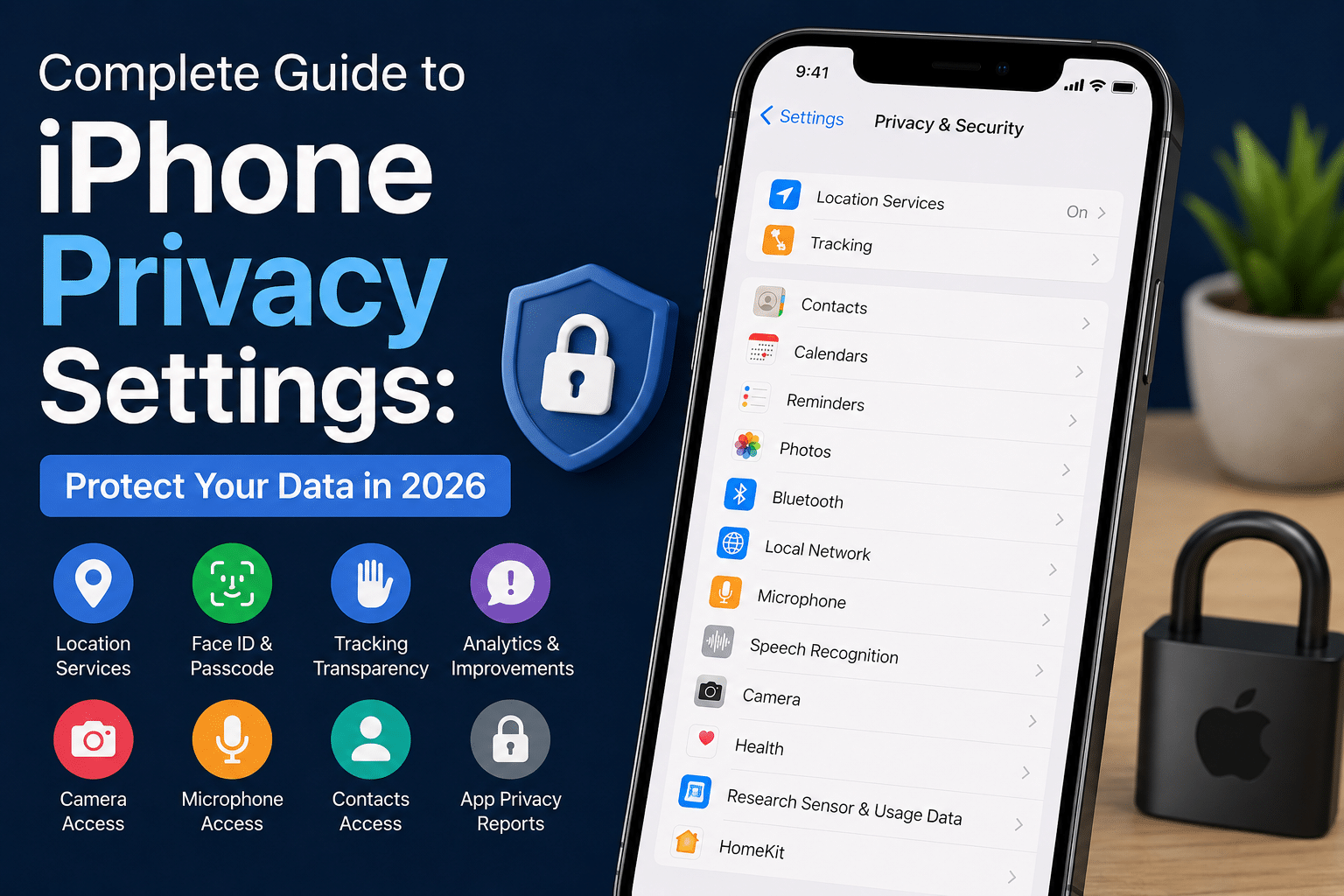
Complete Guide to iPhone Privacy Settings: Protect Your Data in 2026
Privacy has become increasingly important as smartphones collect unprecedented amounts of personal data. Apple advertises privacy as a core feature, yet many users never explore the privacy settings available on their devices. Understanding and configuring these settings provides significant protection against unwanted data collection and tracking. This comprehensive guide walks through iPhone privacy settings, explaining what each setting controls and why proper configuration matters. Implementing these recommendations transforms your iPhone into a device that respects your privacy while maintaining full functionality.
App Tracking Transparency
App Tracking Transparency represents Apple’s most aggressive privacy feature, allowing you to control which applications can track your activity across other apps and websites. This setting dramatically reduces the information advertisers collect about your behavior. Navigate to Settings > Privacy > Tracking. You’ll see a list of all installed applications with individual toggle switches. Disabling tracking for non-essential applications significantly reduces data collection without impacting app functionality. Most users will want to disable tracking for social media apps, news applications, and games. These categories benefit most from advertising networks and are least impacted by disabled tracking. Keep tracking enabled only for applications where you genuinely want personalized experiences.
Location Services Management
Location Services allows applications to determine your geographic position. While some apps genuinely need location access, many request it unnecessarily. Fine-grained control prevents unwanted location tracking. Go to Settings > Privacy > Location Services. You’ll see every app requesting location access. For each application, choose between Always, While Using, and Never. The “While Using” option provides optimal balance, allowing apps to access location only when actively open. Pay particular attention to background location access. Apps like fitness trackers require background location, but social media apps rarely need this permission. Setting these to “While Using” prevents constant location tracking throughout your day.
Camera and Microphone Access
Applications requesting camera and microphone access can monitor your visual and audio environment. Apple’s indicator dots show when these resources are actively in use, but you can prevent access entirely. Navigate to Settings > Privacy > Camera and Microphone separately. Review the list of applications requesting these permissions. Most applications never need camera access, and microphone access should be limited to communication apps and voice assistants. Consider disabling camera and microphone access for social media applications, messaging apps beyond your primary service, and games. These applications rarely require these sensors, and you lose nothing by restricting access.
Contact and Calendar Privacy
Your contacts and calendar contain sensitive personal information. Many applications request access to these categories for features you likely don’t need. Go to Settings > Privacy > Contacts and Calendar. Examine which applications have access. Disable access for any application that doesn’t genuinely need contact information or calendar data. Email clients, messaging services, and calendar apps naturally require these permissions. Most users should disable calendar and contact access for social media apps, games, and entertainment applications. These apps request this data purely for advertising and data collection purposes.
Photos Library Management
Photos contain metadata revealing your location, date, and visual documentation of your life. Restricting photo access prevents unnecessary data exposure. Navigate to Settings > Privacy > Photos. You’ll see options ranging from “No Access” to “Full Library.” Choose whether each application can access all photos or select only specific photos. This granular control prevents oversharing. Using the “Select Photos” option for most applications ensures they can only access photos you specifically choose. This particularly helps when applications request photo access for features you rarely use.
Health and Fitness Data Protection
The Health app aggregates sensitive data including fitness activities, weight, sleep patterns, and health metrics. While health apps genuinely need this access, most others should be restricted. Open the Health app and navigate to Privacy. You’ll see each app’s access level to health categories. Limit health data access to dedicated health and fitness applications. Social media apps and games have no legitimate reason to access this information. Consider using the Health app’s granular permissions to allow fitness apps access to specific metrics while restricting others. This balance maintains functionality while protecting sensitive health information.
Siri and Search Privacy
Siri processes your voice commands and learns your preferences. Restricting Siri’s access to app data prevents Apple’s assistant from collecting unnecessary information about your activities. Go to Settings > Privacy > Siri & Search. Toggle off the option allowing apps to integrate with Siri. This prevents Siri from accessing app data to provide suggestions and shortcuts. Also consider enabling “Delete Siri History” regularly. This purges voice command records and prevents long-term storage of your requests.
Network and Connectivity Privacy
Your connected networks reveal your location and browsing patterns. Configuring network privacy prevents unnecessary tracking through connection data. Navigate to Settings > WiFi and toggle “Ask to Join Networks” off. This prevents your phone from constantly broadcasting queries searching for previously used networks, which third parties can track. Use iCloud Private Relay in Settings > [Your Name] > iCloud > Private Relay. This service encrypts your browsing data, preventing your ISP and websites from seeing your full IP address.
Conclusion
Configuring iPhone privacy settings requires effort and ongoing attention, but the protection gained justifies the investment. Start with the most critical settings: app tracking transparency, location services, and camera/microphone access. These three categories provide the most significant privacy improvement. Privacy is not binary. Your configuration should balance privacy protection with app functionality. The goal is preventing unnecessary tracking while maintaining usable devices. Regular review of privacy settings ensures your configuration remains appropriate as new apps are installed and your usage patterns evolve.